Ultimate Guide to Chatbot for WooCommerce – Boost Your Sales
Putting a chatbot on your WooCommerce store isn't just a cool feature anymore—it's a smart business decision that can seriously lift your conversion rates and provide round-the-clock support. Think of it as upgrading your shop from a simple product list to a dynamic, interactive assistant that's always ready to help.
Why Your WooCommerce Store Needs a Chatbot

Let's get real about what an AI assistant can do. Picture this: it's 11 PM, and a potential customer is on your site, wondering about shipping costs to their city. Without someone there to answer, they'll likely click away and you've lost a sale. A chatbot fields these questions on the spot, keeping that customer on your site and moving them toward checkout.
This is about more than just slapping a chat widget on your homepage. It’s about having a tireless sales and support agent working for you 24/7. This agent smooths out the common bumps in the customer's journey, turning moments of friction into positive interactions that build trust.
Streamline Support and Boost Sales
A well-configured chatbot is much more than a simple Q&A machine; it becomes a key player in your sales strategy. By taking over the repetitive, common questions, you'll see some powerful benefits ripple across your store.
- Instant Order Tracking: It handles the constant "Where is my order?" question instantly, cutting down your support ticket volume dramatically.
- Proactive Engagement: The bot can act like a personal shopper, offering smart product recommendations based on what a visitor is looking at. We dive deeper into this in our guide on how to boost conversions with chat funnels and MxChat.
- 24/7 Availability: Your online store is always open, so your customer support should be too. A bot guarantees every visitor gets help the moment they need it, day or night.
The real magic of a chatbot is its ability to offer immediate, scalable support. It frees up your human team to tackle the tricky, high-value problems while ensuring no customer is left hanging. That directly translates to happier customers who stick around.
The move towards chatbots in e-commerce is a clear trend. Projections show that by 2025, around 60% of B2B and 42% of B2C companies will be using chatbot software, mainly because it's efficient and saves money. You can find more data on chatbot adoption over on Tidio.com. To put it simply, getting smart automation in place is becoming essential to keep up.
Getting Your First WooCommerce Chatbot Up and Running

Adding a chatbot for WooCommerce to your store is much easier than you might think, and you won't have to touch a single line of code. The best place to start is the official WordPress plugin repository—it's the safest, most reliable source for expanding your site's features.
Before you jump in, it’s smart to do a quick pre-flight check. The single most important thing you can do for a hassle-free setup is to make sure your WordPress and WooCommerce installations are both fully updated. From my experience, outdated software is the number one cause of weird plugin conflicts.
Finding and Activating the Plugin
Once you've confirmed everything is current, the actual installation is a breeze.
Just head to your WordPress dashboard and go to Plugins > Add New. In the search bar on the right, type in "MxChat." You'll see the plugin pop right up.
From there, it's just two clicks:
- First, hit the Install Now button. WordPress handles all the backend work for you.
- Once it’s done, that button will change to Activate. Click it one more time.
And that’s it—the plugin is now live on your site. If you want a more detailed breakdown of the process, our complete guide on how to add an AI chatbot to WordPress with MxChat has you covered. This first step gets the foundation in place for all the cool customization to come.
Don't get bogged down trying to make everything perfect right away. The main goal here is just to get the tool installed. You can always circle back to tweak the settings later.
With the plugin activated, you'll spot a new MxChat menu item in your WordPress dashboard. This is where the magic happens. It’s your new control panel for everything from connecting your AI model and building a knowledge base to customizing how the chatbot looks and feels on your storefront.
Connecting Your Chatbot to an AI Brain
Alright, you’ve got the plugin installed. Now for the fun part: giving your chatbot its brain. This is where you connect MxChat to a Large Language Model (LLM), like the ones from OpenAI. Think of it this way—the plugin is the body, but the AI model is what lets it think, understand, and actually talk to your customers.
To make this connection, you'll need an API key. It's basically a special password that lets MxChat securely talk to the AI model. Getting one is pretty straightforward and starts over on the OpenAI platform.
Generating Your API Key
First things first, log into your OpenAI account and find the API keys section. You'll want to generate a new secret key just for your WooCommerce store. I always recommend giving it a clear name, like "WooCommerce Store Chatbot," so you're not scratching your head a month from now trying to remember what it's for.
This is the main dashboard you’ll see, where you can find all the developer tools and, most importantly, access your API keys.
Once you create the key, copy it right away and stash it somewhere secure. As a security measure, OpenAI only shows you the full key one time.
With your key in hand (or on your clipboard), jump back over to your WordPress dashboard and open the MxChat settings. You'll see a field waiting for your OpenAI API key. Just paste it in, hit save, and that's it. That simple step is what brings your chatbot to life, turning a static widget into a smart chatbot for WooCommerce.
For a deeper dive, check out our complete guide on integrating the OpenAI API with WordPress using MxChat.
Choosing the Right AI Model
Plugging in the API key is step one; now you have to decide which AI brain to use. MxChat supports a few different models, but for an e-commerce store, your main choices will likely be between GPT-3.5 and the various GPT-4 models.
Your choice of AI model is a strategic decision that balances cost, speed, and response quality. It's not just a technical setting—it directly impacts the user experience on your storefront.
Here’s how I think about it when advising clients:
- GPT-3.5-Turbo: This is your workhorse. It's incredibly fast, very affordable, and perfect for handling a high volume of straightforward questions. Think "Where's my order?" or "Do you ship to Canada?"
- GPT-4o: The new kid on the block, and a fantastic all-rounder. It gives you smarter, more nuanced answers than GPT-3.5, but it’s way faster and cheaper than the original GPT-4. It's a great middle-ground for most stores.
- GPT-4-Turbo: When you need the absolute best, this is it. If your chatbot is handling complex product recommendations or walking customers through technical support, the superior reasoning of GPT-4-Turbo is worth the higher cost per chat.
Building Your Chatbot's Knowledge Base
An AI chatbot is only as smart as the information you give it. Once your AI model is connected, the real work begins: turning that generalist AI into an expert on your store. This is all about building its knowledge base by syncing it with the core data of your WooCommerce site.
Kicking off the sync process lets MxChat index your product catalog, key store pages, and any FAQs you've already created. It learns everything—product names, prices, stock levels, your shipping policy, you name it. Skip this, and your shiny new chatbot for WooCommerce won't be able to answer even the most basic customer questions.
Feeding Your Chatbot the Right Information
Think of it like training a new sales associate. You wouldn't put them on the floor without a product manual, right? The same logic applies here. A well-stocked knowledge base means your chatbot delivers accurate, helpful answers instead of just guessing.
To get the best results, you'll want to focus on a few key areas:
- Product Details: Your product descriptions are a goldmine. The more detail you include—materials, dimensions, care instructions—the better the bot can handle specific pre-sale questions.
- Store Policies: Make sure your Shipping, Returns, and About Us pages are crystal clear. The chatbot leans on these heavily for any policy-related questions.
- FAQs: If you have an FAQ page, you're already ahead. The chatbot can import these questions and answers directly, getting it up to speed in minutes.
Here’s a quick visual of what that initial data sync often looks like.
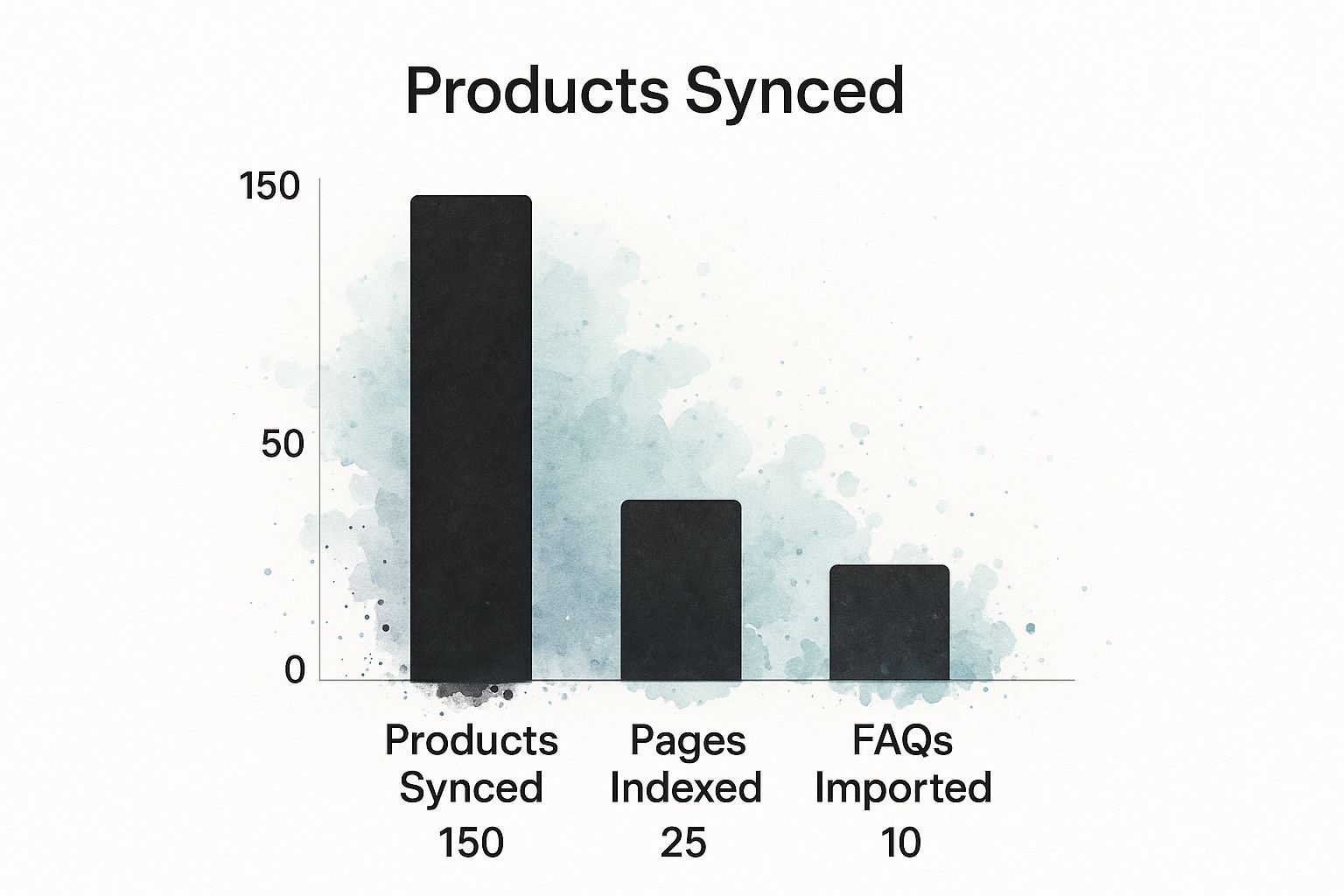
As you can see, the bulk of the chatbot's initial "training" comes straight from the products it's there to support.
To put it in perspective, let's break down the most essential data sources and what they empower your chatbot to do.
Essential Data Sources for Your Chatbot's Knowledge Base
This table outlines the key information you should sync and the types of common customer questions each one helps resolve.
| Data Source | Type of Information | Example Customer Question Answered |
|---|---|---|
| Product Catalog | Names, descriptions, pricing, stock levels, specifications | "Is the blue t-shirt available in size large?" |
| Store Pages | Shipping policies, return procedures, contact information | "What's your return policy for international orders?" |
| FAQ Page | Pre-written common questions and their definitive answers | "How long does standard shipping usually take?" |
| Custom Data | Unique brand info, promotions, or special instructions | "Do you offer a warranty on electronic items?" |
By providing these core pieces of information, you're not just activating a chatbot; you're building a reliable, 24/7 expert for your customers.
A chatbot without a dedicated knowledge base is like a salesperson who has never seen the product catalog. Syncing your store's data is the single most important action you can take to ensure its success.
The demand for this kind of intelligent automation is skyrocketing. According to data from Exploding Topics, the chatbot market swelled from $2.47 billion in 2021 and is projected to hit $15.57 billion in 2025. It’s clear that automated, intelligent support is no longer a "nice-to-have."
For a deeper dive into making this work for your site, see our guide on how a knowledge base chatbot can enhance your WordPress site.
Making the Chatbot Your Own

Now that your chatbot has a brain and a knowledge base, it's time to give it some personality. You want your chatbot for WooCommerce to feel like an extension of your brand, not some generic widget tacked onto your site. An out-of-the-box look can feel jarring and disconnected from your store's vibe.
The first step is visual. Dive into your MxChat settings and find the appearance or theme options. This is where the magic happens. Match the chat widget's colors to your brand palette and upload your logo. It’s a small change, but it makes a huge difference in building trust and brand recognition right away.
Dialing in the Chatbot's Behavior
Looks are one thing, but behavior is another. You need to control how and when the chatbot interacts with your customers. The defaults are a decent starting point, but the real power comes from setting up specific rules that guide visitors and boost sales. This is how you transform a reactive tool into a proactive sales assistant.
It all starts with the welcome message. Ditch the generic "How can I help you?" and write something that reflects your brand’s voice.
- For a fashion store: "Welcome! Looking for style tips or need help finding the perfect size? Just ask."
- For a tech store: "Hey there! Have a technical question or need help comparing products? I'm here to help."
These small tweaks immediately make the interaction feel more personal and guide the customer toward a useful conversation.
The most effective chatbots don't just sit there waiting for questions. They intelligently start conversations at just the right moment. Setting up proactive triggers based on user behavior can seriously reduce cart abandonment and nudge customers toward a purchase.
Think about common hang-ups in the customer journey. If someone is lingering on a product page for more than 30 seconds, why not have the bot pop up with a helpful message? Something like, "I see you're checking out our new collection. Need help with the features?" can be incredibly effective.
Believe it or not, chatbot adoption is still pretty low among online retailers. Recent data shows that only about 9% of global online retailers have integrated a chatbot. Yet, transactions through chatbots are expected to hit a staggering $112 billion by 2024. This is a massive opportunity for stores willing to get ahead of the curve. You can check out more fascinating chatbot statistics on Desku.io.
By taking the time to customize your chatbot, you’re creating a smarter, more effective tool that truly sets your store apart.
Common Questions After Setting Up Your WooCommerce Chatbot
So, you’ve got your new chatbot for WooCommerce up and running. That's a huge step! But getting it installed is just the beginning. Now comes the part where you fine-tune it to make sure it’s a genuinely helpful assistant for your customers and not just a gimmick.
I've worked with countless store owners, and a few key questions always come up right after the initial setup. Let's walk through them.
"Is It Actually Giving Good Answers?"
This is, without a doubt, the most common concern. You've fed it your data, but how can you be sure it's interpreting that information correctly? The absolute best way to verify this is to put yourself in your customers' shoes.
Open the chat widget and start asking questions. Don't just ask one or two—really grill it. Try the top 5-10 questions your human support team gets flooded with every single day. This simple stress test will immediately show you where the gaps are and what needs tweaking.
"What Happens When the Chatbot Doesn't Know the Answer?"
This is a make-or-break moment for customer experience. If your bot gets stuck and just says "I don't understand," you're going to create frustration. Fast.
Your chatbot needs a clear fallback plan, an "escape hatch" to a real person. Without it, you’re just creating a dead end for your customers. Thankfully, a good tool like MxChat has this built-in. You can set it up to hand off the conversation to a live agent if a customer uses certain keywords (like "talk to a human") or if the bot fails to find an answer after a couple of tries.
Think of a handoff to a human agent not as a failure, but as the system working perfectly. The chatbot is there to field the easy, repetitive stuff. Your expert team is there for the complex, nuanced issues. That's the whole point—it's about smart resource allocation.
"How Often Do I Need to Update Its Brain?"
Your chatbot’s knowledge base isn't a "set it and forget it" feature. You should treat it like a living part of your store that needs occasional care.
A good rule of thumb is to sync it with new information whenever something important changes. For example, you should plan a quick update when you:
- Launch a new product or an entire collection.
- Update your shipping or return policies.
- Kick off a big sale or promotion with its own set of rules.
Keeping the knowledge base fresh ensures your chatbot stays accurate and trustworthy, which is exactly what your customers need.
Ready to turn your website traffic into sales with a 24/7 AI assistant? Get started with MxChat today and see the difference an intelligent, no-code chatbot can make for your WooCommerce store. Learn more at https://mxchat.ai.