Add an AI Chatbot for WordPress Ultimate Guide
Adding an AI chatbot for WordPress is hands-down one of the smartest moves you can make to boost engagement, handle customer support, and grab leads around the clock. This isn't just another shiny tech gadget. It's a strategic tool that gives your visitors instant, intelligent answers, turning your website into an interactive and seriously efficient business machine.
Why Your WordPress Site Needs an AI Chatbot

Putting an AI chatbot on your WordPress site is a strategic play that leads directly to business growth. Forget thinking of it as a simple chat widget; this is about adding a tireless digital assistant that works 24/7 to serve your audience.
Imagine you run an e-commerce store. The chatbot can guide shoppers to the perfect product, answer questions about stock, and even help process returns. If you're a consultant, the bot can pre-qualify leads by asking a few key questions, making sure you only spend your valuable time on the best prospects.
This kind of automation frees up your team to focus on the complex, creative stuff that actually needs a human touch. The whole point is to offer a smooth, modern experience that satisfies the "I need it now" expectation of today's online visitors.
Here’s a quick look at the main advantages you can expect.
Key Benefits of an AI Chatbot for WordPress
| Benefit | Impact on Your Website |
|---|---|
| 24/7 Customer Support | Provides instant answers to common questions, even when your team is offline, boosting customer satisfaction. |
| Lead Generation | Actively engages visitors, captures contact information, and qualifies leads automatically. |
| Increased Sales | Guides users through the sales funnel, recommends products, and helps overcome buying objections. |
| Reduced Costs | Automates up to 80% of routine queries, significantly cutting down on customer service expenses. |
Essentially, an AI chatbot gives you a more efficient, responsive, and profitable website.
Tangible Business Growth and ROI
The impact of this technology isn't just theoretical—the numbers speak for themselves. The AI chatbot market is on track to hit around $47 billion by 2029, which tells you just how many businesses are getting on board.
Companies are already seeing huge returns, with some reporting cost savings of up to $300,000 annually just by automating routine customer questions. When a bot can handle up to 80% of those interactions on its own, the value becomes crystal clear.
Of course, a chatbot works best when it's part of a well-built site. A solid foundation in professional WordPress website design is the perfect starting point before you add advanced tools like this.
Key Takeaway: An AI chatbot for WordPress isn't an expense—it's an investment in efficiency. It automates repetitive tasks, allowing your team to focus on high-impact activities while ensuring your customers always receive prompt support.
This kind of immediate, reliable support system is fantastic for building trust and making customers happy. When visitors know they can get help right away, they're much more likely to stick around, explore your content, and ultimately make a purchase.
You can learn more about how to revolutionize your business with AI chatbots and their benefits in our detailed guide.
Getting Started: Installing the MxChat Plugin

Alright, let's get MxChat up and running on your site. The great thing about working with WordPress is how simple it is to add new features. You won’t need to mess with FTP or manually upload any files—we can handle the entire installation right from your dashboard.
Finding and Installing MxChat
Adding MxChat is just like adding any other plugin from the official repository. If you've done this before, the process will feel very familiar.
- First, head over to your WordPress dashboard. On the left-hand menu, find Plugins and click on Add New Plugin.
- You'll see a search bar on the right side of the page. Just type "MxChat" into it.
- The MxChat plugin should pop right up. Click the Install Now button. After a moment, that button will turn blue and change to Activate. Go ahead and click it.
And that’s it! The core plugin is now installed on your site. We've laid the foundation, and now we get to move on to the fun part: making it your own.
First Look After Activation
With MxChat activated, you’ll notice a new menu item in your WordPress sidebar. This is your command center for customizing the chatbot, training its knowledge base, and tweaking all its settings.
Before you dive in, it’s always a good idea to do a quick sanity check. I always recommend taking a quick spin through the main pages of your live website—the homepage, a product page, your blog—just to make sure everything still looks and works correctly.
A Quick Tip From Experience: Plugin conflicts are rare, but they can happen. If you notice anything strange on your site after activating MxChat, the quickest way to troubleshoot is to temporarily deactivate your other plugins one by one. This usually pinpoints the problem in just a few minutes.
Now that the plugin is installed and you've confirmed everything is running smoothly, you're ready to start the real work. The next step is to connect your chatbot to an AI model and begin shaping its personality to perfectly match your brand.
If you'd like a more in-depth look at this process, we also have a comprehensive tutorial on how to add an AI chatbot to WordPress with MxChat.
Alright, let's get your new AI chatbot configured. You've got the MxChat plugin installed, which is the easy part. Now comes the fun stuff: dialing in the settings so it actually feels like a part of your team and not just some generic bot dropped onto your site.
Everything you need is in the MxChat settings panel, right in your WordPress dashboard. This is your command center for tweaking the bot's look, feel, and personality.
First things first, you need to connect MxChat to an AI brain. It can't think on its own—it needs a connection to an AI model from a provider like OpenAI or Anthropic. This connection is made using an API key.
Think of the API key as a secure password that lets your website talk directly to the AI service. Just head over to your account with your chosen AI provider, grab the key, and paste it into the right field in the MxChat settings. Hit save, and just like that, your chatbot is powered up and ready for action.
Making the Chat Widget Look Like It Belongs
Nothing screams "tacked-on plugin" more than a chat widget that clashes with your website's design. To make this feel like an integrated part of your site, you’ll want to match its appearance to your brand.
It's actually pretty straightforward in the MxChat appearance settings. Here’s what you can quickly change:
- Brand Colors: Swap out the default colors for the header, background, and buttons to match your company's color palette.
- Company Logo: This is a big one. Upload your logo to sit in the chat header. It’s an instant mark of professionalism and brand recognition.
- Chat Icon: Ditch the generic speech bubble for a custom icon that fits your site's vibe.
These might seem like small details, but they make a world of difference. Your visitors will see the chatbot as a trusted, native part of your website, not just another third-party tool.
Nailing the First Impression with a Great Welcome Message
The first thing your chatbot says to a visitor is critical. A bland "How can I help you?" gets the job done, but a thoughtful welcome message can kick off a genuinely helpful conversation.
Think about who's visiting your site. For an e-commerce store, something proactive works well: "Welcome! Looking for something specific or need help with an order? I can track packages, check stock, and more." For a B2B company, you might go with a more direct approach: "Thanks for stopping by. I can answer questions about our services or help you schedule a demo with our team."
My Pro Tip: Don't just greet them; guide them. Add a few suggestion buttons like "Track my order," "View pricing," or "What services do you offer?" right under your welcome message. This dramatically boosts engagement because you’re making it ridiculously easy for people to get started.
When you look through the WordPress plugin directory, you'll see tons of chatbot options.
The sheer number of choices just goes to show how important it is to have a settings panel that's both powerful and intuitive, letting you customize things without needing a developer.
Setting Clear Expectations with Business Hours
Your AI can work 24/7, but your human team can't. This is where setting up "office hours" in MxChat is a lifesaver. It’s all about managing expectations.
During your team's working hours, you can configure the bot to offer a seamless handoff to a live agent if needed. But outside of those hours, it can automatically let visitors know the team is out. Instead of leaving them hanging, it can offer to take a message or create a support ticket. This simple setting prevents frustration and makes sure you never miss a lead, even when you're offline.
Training Your AI to Be a Brand Expert

This is where the real magic happens. It’s the step that turns your chatbot from a generic plugin into a genuine brand ambassador. Right now, your AI is a bit like a new hire on their first day—smart, but clueless about how your business actually works. Training is what gives it the specific context, personality, and expertise to represent you perfectly.
The goal here isn't just to build a simple Q&A machine. We're aiming to create an experience. An AI chatbot for WordPress that truly embodies your brand's voice builds trust and keeps people on your site longer. This process boils down to two critical parts: building a custom knowledge base and crafting a compelling personality.
Building Your Custom Knowledge Base
Think of the knowledge base as your chatbot's brain. It's the library of information your AI will pull from to answer questions. With MxChat, you can feed it your own information directly, making sure its answers are based on your company's reality, not just the wild, generic expanse of the internet.
So, where do you start? Begin by rounding up your most important documents. What do customers ask you all the time? Good candidates include:
- FAQs: This is the low-hanging fruit and the most effective place to begin.
- Product Guides or Manuals: Absolutely essential if you run an e-commerce store or sell software.
- Company Policies: Your official info on shipping, returns, and privacy policies.
- Key Blog Posts or Articles: Any content that explains what you do and what makes you special.
Uploading these files right into the MxChat dashboard gives your bot a solid foundation to stand on. It will use this hand-picked information to give accurate, on-brand answers, which means you'll see far fewer incorrect or "I don't know" responses. The more you feed it, the smarter and more valuable it gets.
Crafting a Winning System Prompt
If the knowledge base is the brain, the system prompt is the personality. This is a short set of instructions that tells the chatbot how to act. It sets the tone of voice, defines its role, and lays down the ground rules for every conversation.
This is your chance to get creative. You’re not just telling it to be helpful; you’re giving it a character to play. A well-written prompt can be the difference between a clunky, robotic interaction and one that feels genuinely helpful and even delightful. For more ideas on this, check out our guide on making a bot with a unique personality.
Key Insight: A great system prompt does more than just list rules; it creates a persona. By giving your chatbot a specific role, you make its responses more consistent, engaging, and perfectly aligned with your brand's voice.
To get your gears turning, here are a few examples of how different businesses might do this:
| Brand Type | Persona | Example System Prompt |
|---|---|---|
| Software Company | Friendly Tech Guru | "You are a helpful and patient tech expert. Always explain complex topics simply. Use analogies to make things clear. Never use jargon." |
| Online Boutique | Empathetic Shopping Assistant | "You are a warm and friendly shopping assistant. Offer style tips and compliments. Help users find the perfect item. Your tone is encouraging and positive." |
| Consulting Firm | Professional Advisor | "You are a concise and professional business advisor. Your answers are direct, data-driven, and focused on business outcomes. Maintain a formal but approachable tone." |
The growth in AI chatbot usage is staggering. Monthly visits to the top platforms shot up by over 65% in a single year, hitting 6.4 billion. This proves just how central these tools have become. By taking the time to train your bot properly, you’re ensuring it meets the high expectations users now have for this kind of technology.
Connecting Your Chatbot with WooCommerce
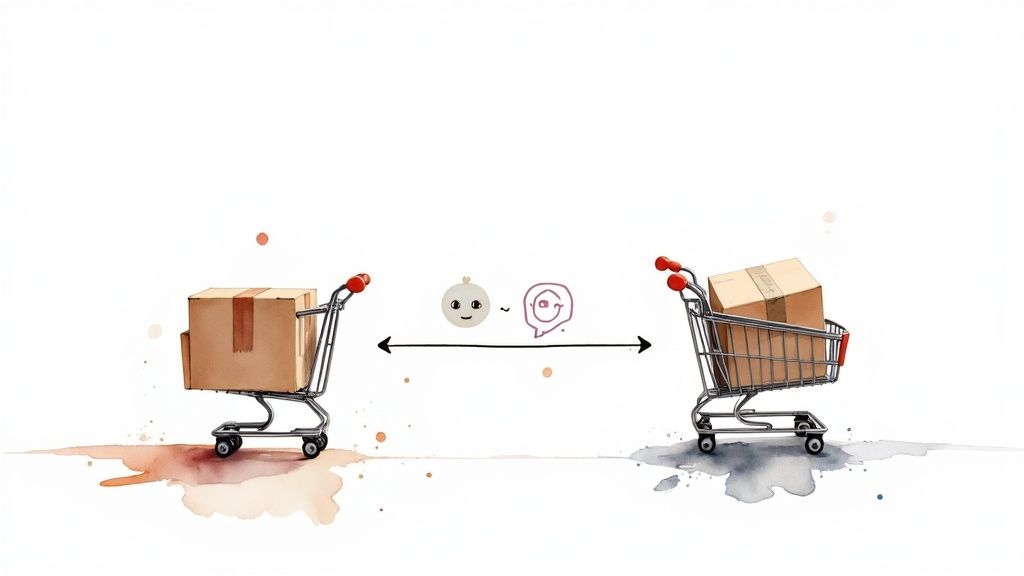
If you're running an e-commerce store on WordPress, linking your chatbot directly to WooCommerce is a game-changer. This isn't just a nifty add-on; it's what turns your chatbot from a general-purpose greeter into a round-the-clock sales and support powerhouse.
The whole point is to let your AI chatbot for WordPress access your store’s live data. This allows it to handle the specific, high-value questions your customers are asking every single day, freeing up your team and drastically improving the customer experience.
Turning Queries into Conversions
Think about a typical late-night shopper. It's 10 PM, and they want to know if a specific t-shirt is in stock in their size and how quickly it would ship. Without an intelligent bot, they’d have to email you and wait, likely losing interest and buying from a competitor.
With a direct WooCommerce connection, your chatbot checks your inventory and provides an accurate shipping estimate instantly. That's how you close a sale.
Here are just a few of the high-impact tasks you can hand off to your AI:
- Personal Shopping: The bot can suggest products based on a customer’s needs or past purchases.
- Live Stock Checks: It can field questions like, "Do you have this in blue?" with real-time inventory data.
- Order Tracking: Customers get instant updates on their order status just by asking in the chat widget.
- Policy Questions: It can clearly explain your shipping and return policies, which helps build trust and reduce cart abandonment.
This is the kind of self-service that customers now expect. Automating these routine queries means your human agents can focus on the complex issues where they're truly needed. For a step-by-step walkthrough, our official guide covers the complete MxChat and WooCommerce integration process: https://mxchat.ai/documentation/mxchat-woocommerce-docs/
The table below shows a few common scenarios where this automation really shines.
WooCommerce Chatbot Automation Examples
| Customer Query | Automated Chatbot Action | Benefit |
|---|---|---|
| "Do you have the Model X headphones in black?" | Checks live product inventory via WooCommerce API. | Instant stock confirmation, preventing a lost sale. |
| "Where is my order #12345?" | Retrieves order status from WooCommerce database. | Reduces "where is my order" support tickets. |
| "I'm looking for a gift for my dad." | Asks clarifying questions and suggests relevant products from the catalog. | Acts as a personal shopper, guiding users to a purchase. |
| "What's your return policy?" | Pulls policy information directly from its knowledge base. | Provides quick, consistent answers, building customer trust. |
These simple interactions add up, creating a smoother shopping experience that encourages both first-time purchases and repeat business.
Training Your Bot for E-commerce Conversations
Once the integration is active, you need to train your AI to think like a sales assistant. This starts by feeding your product catalog, shipping details, and return policies into its knowledge base.
You can then take it a step further by tweaking its system prompt. For instance, you could instruct it to be an "enthusiastic and helpful shopping assistant who proactively suggests complementary products." A simple change like that can turn a basic Q&A into a genuine upsell opportunity.
There's a reason AI adoption is accelerating. It's estimated that by 2025, more than a third of companies will be using this technology, with projected annual savings of $11 billion in customer service costs.
Key Takeaway: A chatbot connected to WooCommerce does more than just answer questions—it actively participates in the sales cycle. By providing instant, accurate information, it removes friction from the buying process and helps turn casual browsers into loyal customers.
Integrating an AI chatbot is one of the most powerful ways to leverage the best WordPress plugins for e-commerce and create a more dynamic and responsive online store.
Got Questions About Your WordPress AI Chatbot? We've Got Answers
Even after a straightforward setup, a few questions are bound to pop up as you get acquainted with your new AI assistant. Let's walk through some of the most common ones I hear from users and clear up any lingering uncertainties.
Will This AI Chatbot Tank My SEO?
This is a big one, and thankfully, the answer is no—as long as you do it right. In fact, a good AI chatbot for WordPress can give your SEO a nice little boost. By engaging visitors and answering their questions right away, you keep them on your site longer. This improves user engagement metrics like time on page, which is a positive signal to search engines that your content is valuable.
The trick is making sure the chatbot script is lightweight and doesn't load until the rest of your page has. This is called asynchronous loading, and it’s crucial for protecting your page load speed, a major ranking factor for Google.
How Do I Keep the Chatbot's Brain Updated?
Keeping your chatbot's knowledge fresh is pretty simple with a tool like MxChat. Inside the settings, you can easily upload new documents, tweak existing text-based knowledge, or just tell the bot to go re-crawl your website for any new content.
My Advice: Set a recurring calendar reminder to update the knowledge base once a quarter. You should also do it anytime you launch a new product, change a key service, or update an important company policy. Think of it as routine maintenance to ensure your AI is always giving out accurate, helpful info.
This little habit prevents the bot from providing stale answers and keeps it a trustworthy resource for your visitors.
What Happens When the AI Gets Stumped?
No AI is perfect, so a solid fallback plan is essential. You never want a user to hit a dead end. You can configure your chatbot to say something helpful like, "I'm not quite sure about that, but let me connect you with a human who can help."
Most quality chatbot plugins will let you set up an automatic email notification or even hand the conversation over to a live agent. This creates a safety net that prevents user frustration and ensures every question eventually finds an answer. It's all about creating a seamless experience.
Can I Eavesdrop on My Chatbot's Conversations?
Yes, and you absolutely should be! Any professional-grade AI chatbot will give you a dashboard to review conversation logs. This isn't about being nosy; it's an incredible tool for quality control and understanding your audience on a deeper level.
By regularly checking these logs, you can:
- Pinpoint the most frequently asked questions.
- Find gaps or weak spots in your chatbot's knowledge.
- Get unfiltered insight into what your customers are struggling with or what they need most.
This data is pure gold. It's a direct line to the voice of your customer, helping you improve not just the chatbot, but your entire business.
Ready to put a smart, on-brand assistant to work on your WordPress site? With MxChat, you can build a powerful AI chatbot without touching a single line of code. You'll be amazed at how it can cut down on support tickets, help you capture more leads, and offer the kind of 24/7 help your customers truly appreciate. Get MxChat today and see the difference.